

Updating drone firmware: Check compatibility and security
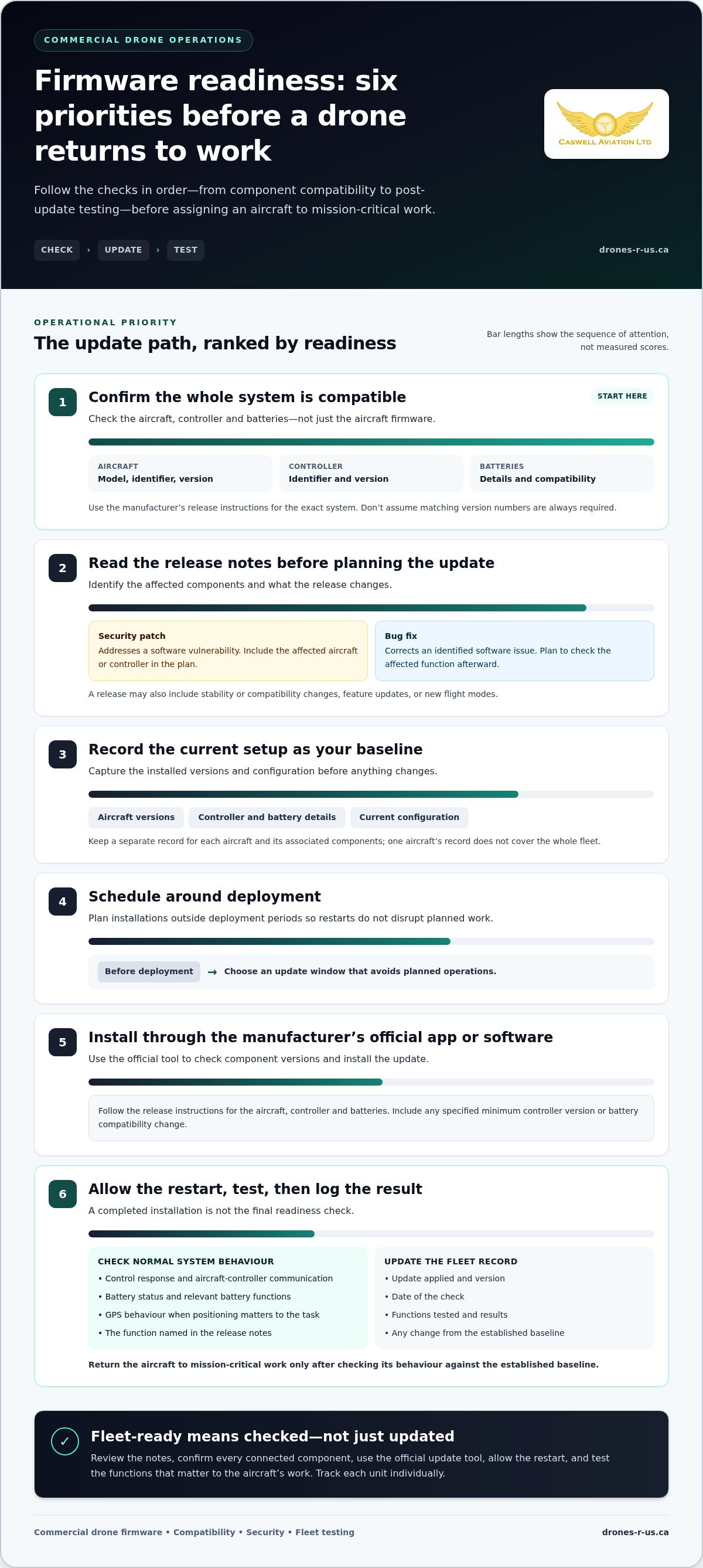
An update can improve a commercial drone, but installing it just before deployment is poor fleet practice. Updating drone firmware for commercial use means checking compatibility across the aircraft, controller and batteries, reviewing release notes, and installing the update through the manufacturer’s official app or software. Test the system before returning the aircraft to mission-critical work.
Updates can provide security patches, bug fixes, stability improvements and compatibility changes. Outdated software may leave vulnerabilities unpatched or cause app, connectivity or performance issues. Across a fleet, scheduling updates carefully also helps crews manage restarts without disrupting planned work.
This guide explains how to assess compatibility, prepare for and install updates, manage restarts and patches across multiple aircraft, and schedule post-update tests. It also covers release notes and how to build firmware checks into commercial operating routines in Canada. The aim is a repeatable process that supports reliable equipment without treating every update as an urgent reason to ground or reconfigure the fleet.
Key Takeaways
- Check that aircraft, controller and battery firmware versions work together before updating a commercial drone.
- Review update notes to understand which security patches, bug fixes or compatibility changes may affect operations.
- Use the manufacturer’s official software or app, then allow the system to restart before assessing its status.
- Schedule updates away from deployment and test system behaviour before returning aircraft to mission-critical work.
- Use a consistent fleet process to track updates and reduce disruption across aircraft and crews.
Compatibility across aircraft, controller, and batteries
A commercial drone is a connected system, not just an aircraft. Controllers and batteries also rely on firmware, so check each component before deployment. A mismatch may affect communication between components or prevent an update from completing. Record each aircraft’s model, identifier and installed version, along with its controller and battery details. This provides a clear baseline for reviewing changes or investigating unexpected behaviour.
Use the manufacturer’s official app or software to check the versions shown for the aircraft, controller and batteries. Compare them with the update information for that exact system. Don’t assume matching version numbers are always required: compatibility depends on the manufacturer’s release instructions. If the notes specify a minimum controller version or a battery compatibility change, treat that as part of the update, not optional reading. Identify older components clearly to avoid pairing them with an incompatible aircraft.
Firmware updates can improve stability and compatibility by addressing known software issues and helping system components work together. They may also adjust flight stability, battery efficiency or GPS accuracy. These are potential benefits, not substitutes for checking the aircraft after installation. If a crew relies on consistent positioning for an aerial survey, for example, assess GPS behaviour after the update. Compare the results with the aircraft’s established baseline before assigning it to that work.
Compatibility matters when an update adds support for technologies or accessories. Release notes may describe broader accessory compatibility, feature updates or new flight modes. Match each change to equipment used in the fleet. An accessory update has little value if the aircraft or controller doesn’t support it. An update can also affect a working setup, so document the current configuration beforehand. That makes it easier to identify what changed if equipment behaves differently afterward.
Keep a record for each aircraft and its associated components. Note the installed versions, the update applied and the date of the check. Don’t assume one aircraft’s record covers the whole fleet.
- Confirm aircraft, controller and battery identifiers.
- Review the manufacturer’s compatibility notes for the exact system.
- Record current versions before updating.
- Afterward, test relevant functions, such as control response, battery status and GPS behaviour.
Checking each component helps operators spot mismatches before a mission. It also provides a useful comparison point when later updates affect stability, compatibility or accessory support.
Keeping a DJI product’s firmware current can improve functionality, stability and user experience. Neglecting updates may affect compliance with current regulatory requirements and could risk fines or flight restrictions.
Security patches and bug fixes
Firmware updates can address security weaknesses and software faults that affect drone operations. Read the release notes to understand what changed before scheduling an installation.
Security Patches
A security patch changes firmware to address a software vulnerability. For commercial operators, installing relevant patches helps avoid leaving known weaknesses unaddressed. Manufacturers release updates to respond to vulnerabilities and support current operational standards. Review the release notes for the affected aircraft or controller, then record the patch and version in the fleet maintenance log.
When firmware is neglected, vulnerabilities may remain unpatched. That matters when a drone relies on connected apps, controllers or other software to support a mission. If release notes identify a security change affecting a controller, for example, include it in the update plan rather than updating only the aircraft. Track which units received the patch and test their normal functions afterward.
Bug Fixes
Bug fixes address identified software issues, such as glitches or inconsistent system behaviour. They can improve stability and reduce the likelihood of software-related malfunctions. Release notes may describe a fix for a specific function or component. Match the description to your equipment and tasks, then check the affected function after installation.
If an update addresses a connectivity issue, for example, verify that the aircraft and controller communicate as expected afterward. If it concerns a flight function, include that function in the post-update assessment. Targeted testing helps distinguish an update-related change from a pre-existing fault. Record the result alongside the aircraft’s firmware version for future reference.
Security patches and bug fixes serve different purposes, but both can affect operational readiness. A patch addresses a vulnerability; a bug fix corrects a software fault. One firmware release may include both, along with compatibility or stability improvements. Don’t judge an update by its headline alone. The release notes explain the changes, affected components and relevant installation information.
Use a consistent review process for each release:
- Identify the aircraft, controller or other component named in the notes.
- Record the installed version and the update’s stated changes.
- Plan installation outside deployment periods.
- Test the functions related to the patch or fix before assigning the system to work.
This record helps crews understand why an update was applied and what they tested afterward. It also makes it easier to review recurring glitches or functions that behave differently.
For teams building a stronger foundation in safe drone operations, online drone courses can complement a disciplined firmware review process.
Firmware maintenance also involves how a drone’s software works with its operating systems and apps. Without updates, apps may become less compatible with operating systems, glitches may appear, and security vulnerabilities may remain unpatched. Drone firmware updates can include bug fixes, performance improvements and compatibility enhancements. Review these possibilities alongside the release details, and assess whether the changes matter to the equipment planned for use. Tying the review to operational needs supports a measured installation decision.
Updating through manufacturer software or apps
Most drone firmware updates are completed through the manufacturer’s official app or software. To check a version, connect the aircraft and controller, open their firmware information, and compare the displayed versions with the update notice.
Manufacturer Software and App Updates
The manufacturer’s app or desktop software is the official channel for downloading and applying firmware updates. It provides update instructions and version information for supported equipment. The same interface may identify available updates for connected components, such as an aircraft or controller.
Before starting, read the release notes and identify which equipment is covered. Follow the app’s prompts for the connected aircraft and controller instead of assuming one update applies to every component. If the software lists separate component updates, complete them as instructed. Keep the app open and the equipment connected as directed while installation proceeds.
Fleet operators can make the process consistent by recording each aircraft identifier, installed version and update date. A crew preparing several aircraft, for example, can note each unit’s status rather than treating one successful update as proof that the whole fleet is current. Manufacturer software may show different steps for different models, so follow the instructions for the specific equipment.
Checking Firmware Versions and Update Success
A firmware version check compares the software shown in the manufacturer’s app with the version required or offered for that equipment. After updating, reopen the firmware information and confirm the displayed version changed as expected. Check the app’s update status too: a completion message alone doesn’t confirm that every connected component updated.
For a reliable record, note aircraft and controller versions separately. If the app reports an update for a battery or another component, check its status too. Compare the records with the manufacturer’s release information. This makes incomplete updates easier to catch before the aircraft returns to work.
Use a short verification sequence after installation:
- Reconnect the aircraft and controller through the manufacturer’s app or software.
- Open firmware information for each component and record the displayed versions.
- Check that the update status shows completion and no applicable update remains pending.
- Test the system’s normal functions before assigning the aircraft to a mission.
If the displayed version hasn’t changed or the software still shows an update as pending, don’t mark that component complete in the fleet record. Follow the manufacturer’s on-screen guidance, then check the status again. This gives commercial operators a clear installation record and a practical confirmation step without relying on memory or assumptions.
Automatic drone restart after updating
A firmware installation may involve a restart, but the sequence depends on the manufacturer’s instructions. Treat the restart as part of the update, not proof that installation is complete.
During an update, the manufacturer’s app may show installation progress, a restart prompt or a reconnection status. Follow the instructions displayed for the aircraft and controller. Don’t power equipment off just because its screen or connection changes. If the app directs a restart, let the system complete that step before starting another update. Interrupting the process against the instructions can leave the update incomplete.
After a restart, reconnect through the manufacturer’s app and check its status. A temporary loss of connection during reboot is different from a persistent error after the system restarts. Look for the app’s completion status, then review firmware information for the aircraft and controller. If the app reports an incomplete installation, follow its guidance before returning the drone to operational use.
Use a controlled sequence for each aircraft:
- Start the update through the manufacturer’s official app or software.
- Keep the equipment connected and follow any restart instructions shown.
- Wait for the app to show a completed update or a clear next step.
- Reconnect, review the displayed version and test normal system behaviour.
For a fleet, process one aircraft at a time when practical. This keeps each unit’s status clear and helps crews avoid mixing a completed aircraft with one still restarting. Record the aircraft identifier and update status before moving to another unit. If a controller serves several aircraft, note which system it is paired with during each update.
Restart timing affects work planning. Don’t start a firmware update immediately before deployment, when a restart or unexpected prompt could delay preparation. Schedule the work when crews can monitor the app, follow its instructions and complete post-update checks. Keep a mission-critical aircraft out of active rotation until its update status and system behaviour have been assessed.
If the aircraft restarts but the app still shows an update in progress, follow the manufacturer’s displayed guidance instead of repeatedly cycling power. Record the message and component involved. Once the app shows completion, check that the aircraft and controller reconnect normally. Then verify functions relevant to the next task, such as control response or camera operation for an imaging mission.
A restart is just one stage of the process. The app’s status, the component’s displayed version and a post-update functional check together provide a stronger basis for returning equipment to service.
Firmware updates for commercial drone fleets
Plan firmware updates for commercial use around fleet readiness, mission requirements and clear records. A consistent process helps crews assess each release before scheduling changes across aircraft.
Fleet Update Planning
Fleet update planning means documenting how firmware changes are assessed and scheduled across aircraft. It helps operators manage different configurations and avoid rushed changes before deployment.
Transport Canada rules don’t make every firmware release an automatic update requirement. However, some aviation regulations may require specific software capabilities for legal flights. Assess whether each aircraft continues to support the capabilities required for its intended operation.
An update may also affect a declared safety assurance or operational authorization if it changes relevant equipment capabilities or configuration. Before returning the aircraft to service, compare the updated system with the documents and operating conditions that apply to the flight.
Pre-Update Backups and Records
Pre-update records capture an aircraft’s software state and operational configuration. They help crews track changes and give maintenance teams context if a fault appears afterward.
Before installation, record aircraft and controller identifiers, firmware versions, release notes and the update date. Preserve relevant flight logs, maintenance entries and configuration details. An update doesn’t replace flight logs; recording the change alongside them makes the maintenance history more useful.
Keep update history with other insurance documentation. Flight logs and maintenance records can help describe an aircraft’s condition, while coverage depends on the applicable policy terms.
Pre-Flight Risks and Failed Update Recovery
Installing an update immediately before a commercial flight can delay preparation or introduce unexpected system behaviour. Schedule changes away from deployment, then assess the aircraft before mission-critical work.
If an installation fails, record the app message and affected component. Reconnect through the manufacturer’s official software and follow its recovery instructions. Don’t interrupt another installation or repeatedly restart equipment unless instructed. Confirm the status and test the aircraft before assigning it to a flight.
Update Releases, Testing, and Rollbacks
Manufacturers may release firmware updates several times a year, but there’s no fixed schedule. Whether an update is free depends on the manufacturer’s terms for that release and related software.
For commercial use, review release notes and assess changes before updating the whole fleet. Test on an aircraft not needed for immediate deployment, then check relevant functions before applying the update more broadly. Rollbacks are available only when supported by the manufacturer; follow its instructions rather than installing older firmware independently.
Base the decision on the update’s security, compatibility and operational effects. A required capability may call for prompt action, while a feature change can be scheduled for controlled testing. Build stronger commercial drone operating skills to support disciplined fleet procedures.
Caswell Aviation Ltd: Online Drone Courses and InPerson Training
Caswell Aviation Ltd offers online drone courses and in-person training for pilots working toward Transport Canada Advanced and Level 1 Complex certification. If firmware changes raise questions about operational readiness, structured training can strengthen the knowledge pilots apply when preparing for commercial flights. Caswell Aviation Ltd also conducts Advanced & Level 1 Complex Flight Reviews, providing a next step for pilots pursuing those credentials.
Firmware procedures remain specific to each manufacturer and aircraft. Training supports broader operational understanding, while release notes and manufacturer instructions guide equipment updates. For training or a flight review, contact Caswell Aviation Ltd.
Make firmware decisions part of your operating plan
Make firmware decisions a repeatable part of your commercial operating plan. Assign responsibility for reviewing release notes, documenting decisions and scheduling updates away from deployment. A consistent process helps crews manage software changes as an operational consideration, not a last-minute interruption. Keep the procedure practical and revise it when equipment or mission requirements change.
A disciplined approach to updating drone firmware for commercial use also depends on sound piloting knowledge and clear operational judgement. Caswell Aviation Ltd offers Online Drone Courses and InPerson Training, along with Advanced & Level 1 Complex Flight Reviews. For organizations planning aerial projects, it also provides Drone Aerial Photography and Video.
Whether you’re strengthening pilot skills or planning an aerial imagery project, take the next step at your own pace. Contact Caswell Aviation Ltd to discuss your training or project needs and move forward with confidence.
Frequently Asked Questions
How do I update commercial drone firmware safely, step by step?
Use the manufacturer’s update process and make installation part of planned maintenance. Identify the aircraft and connected components, then review release notes for relevant changes. Use the manufacturer’s official app or software, follow its prompts and allow any required restart to finish. Afterward, check the system status and test functions needed for the next task. Keep the aircraft out of mission-critical work until these checks are complete.
Where can I download official firmware for popular commercial drones in Canada?
Get firmware through the drone manufacturer’s official app or software, not an unverified download site. Identify the exact aircraft model before selecting an update, since software and compatibility instructions can vary between models. If the app connects to both aircraft and controller, review update information for each component. Keep the release notes with maintenance records so the installed version and its changes are clear to the next crew.
Can firmware updates change drone features, geofencing, or compatibility with batteries and controllers?
Yes, updates can introduce features or expand accessory compatibility, and they may affect how aircraft components work together. Check the release notes for changes relevant to your model and connected batteries or controller. Don’t assume geofencing changes with every update; treat it as affected only if the manufacturer’s notes describe a relevant change. If a feature or compatibility change matters to an upcoming job, assess it before assigning the drone.
Leave a comment